What a student sees
A student signs in and lands on their modules. Everything they need is there or one click from it, and nothing on the page is about administering anything.
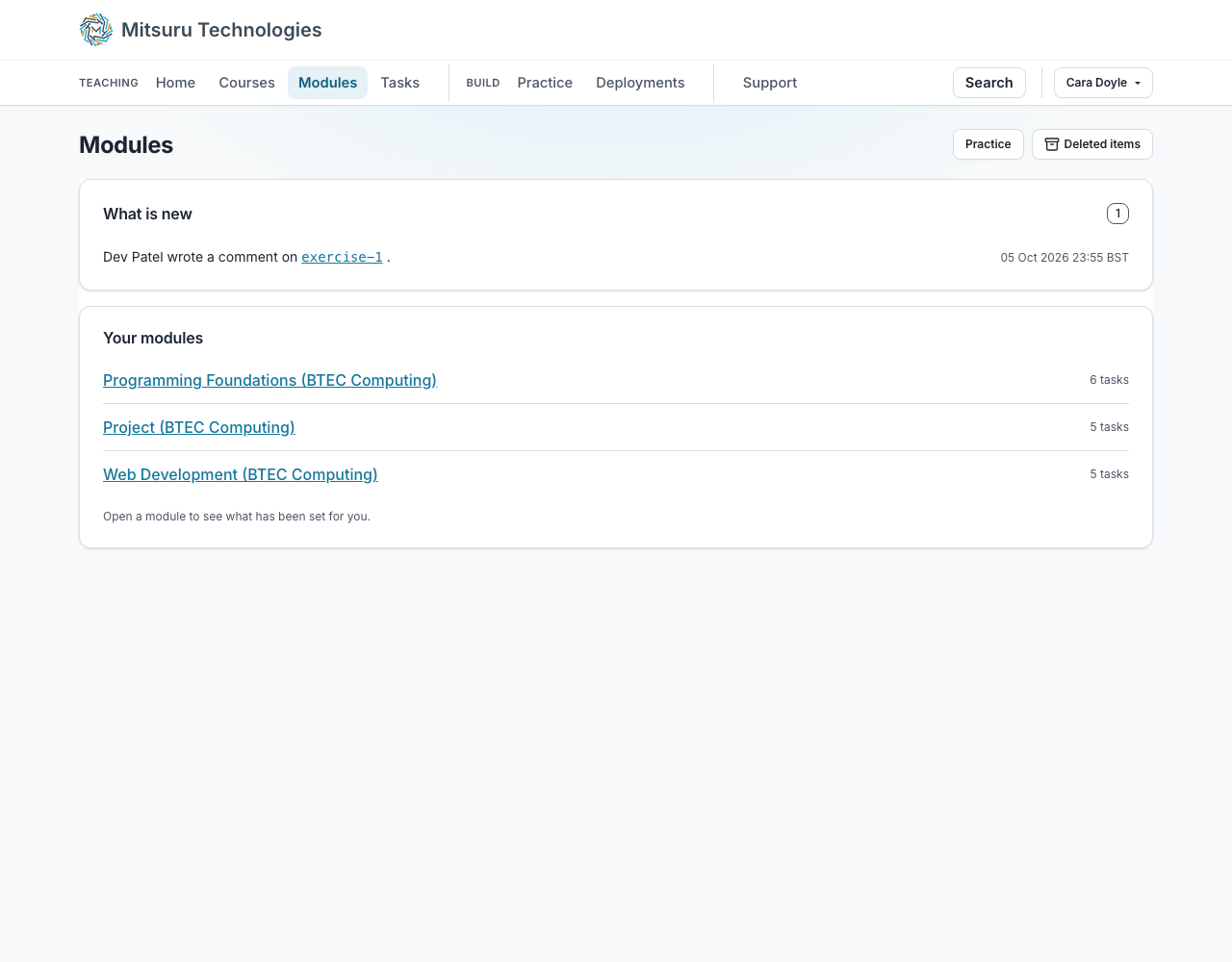
What is new, at the top
Being put on a module, a task set for them, a comment from a teacher, work sent back. Each shows once and goes when they open what it points at.
The same things arrive by email, once each. A student can turn that off and lose nothing, because the panel is the record.
Home says what needs them
Their Home page opens on what is waiting: anything overdue, anything due today, and anything a teacher has sent back with a comment. Most urgent first, and each one is a link straight into the work.
Work they have already handed in is not on it, and neither is work with no due date on it. Nothing waiting says so in a line, rather than showing an empty space they have to interpret.
Somebody on no modules yet is told what to do next instead, and it depends on who they are: a new teacher is pointed at making their first module, a college’s admin at adding the staff who teach, and a student at where to type a join code if their teacher gave them one.
Three lists of their own
Courses, Modules and Tasks: the courses they are on, the modules of those, and every task they hold. Widest first, because a student looking for one piece of work knows the module before they know the task.
A module’s own page searches by name, pages at twenty and sorts on Task, Type and Last saved, and has the same Category and Type filters as a teacher’s Tasks tab. Courses can be searched and filtered by the year of a course, and a module a student was put on directly appears under “Modules on their own” rather than being left out. Tasks is sorted soonest due first, with search and filters for course, module, Still to do or Done. Done means a program’s tests pass, a written task has been read or handed in, or a quiz has been sat.
Getting an earlier version back
Every file of every task a student holds, and every practice file of their own, keeps its history. On their own editor page there is the same panel their teacher has: a slider through the saved versions, a picker where a task has several files, and a Restore button on any version.
Restoring is a save and not a rollback. The version chosen is written back as a new current version, so nothing is lost: whatever was in the editor a moment ago is still in the list, and a restore of the wrong version is undone by restoring another. It follows what a save follows, so a task whose time has run out where you stopped them working refuses a restore as it refuses a save, and a pane or a SQL schema you locked stays locked.
A restore is written to the access log as an edit, so their teacher can see the work was put back rather than typed, and they see the same entry. Reading their own history is recorded nowhere, because that log is about people going through somebody else’s work.
Their own files, separately
Practice files are theirs and not part of any module: somewhere to try something without it being work.
Deployments, beside their files
Build on the bar is where a student’s own work is: Code for their files, and Deploy an app, Run a container and Run an Ubuntu VM, a big button each. Deploy an app is where a student stands up Python, Node, Go, Java and static HTML, CSS and JavaScript sites from a public GitHub repository, on an address of their own, for a limited time. It is theirs to use outside any task, and it is where a task that asks for a deployed app sends them.
The box at the top of the page shows what is running, and its App slot has a Stop button, so an app is stopped from the place that says it is up.
Questions people ask
- Can a student see other students’ work?
- No. Every read asks who is asking, and a student may see their own work and the task set for them.
- What does a student need to sign in?
- Their email address. A code is emailed to it, or they use Google or a passkey if the college has turned those on.