How people sign in
The default is a six-character code emailed to the address the college holds, which means there is no password to forget, reset or write on a whiteboard.
Five ways in, and you pick
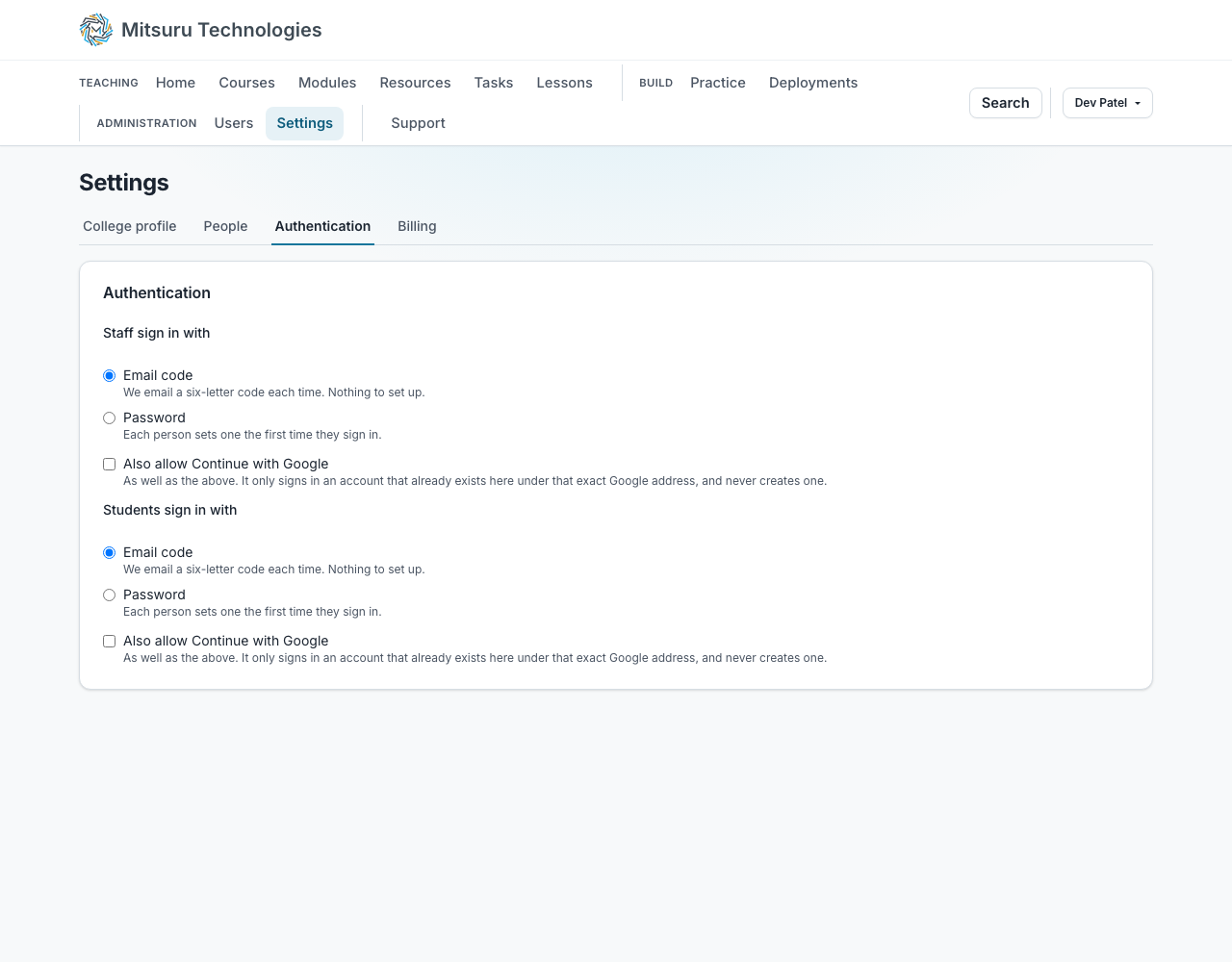
An emailed code, a password, Continue with Google, a passkey, and a link from your VLE. Code or password, and whether Google is offered, are set separately for staff and for students, because a school that uses Google for students may not for staff.
Passkeys are the fastest and are offered after the first sign-in. They are a face or a fingerprint on a device the person already carries. The offer is made once: if somebody says not now or not ever, we ask again a week later. A passkey kept in iCloud Keychain or Google Password Manager works on every device it syncs to, and a site administrator can remove anybody’s, for a leaver or a lost device, without locking the person out. Email always still works.
Continue with Google is a tick under each of the two groups, for staff and for students, and it is only an alternative: the code or password box stays. It never creates an account at a college, so a Google login with no account there is told to ask whoever runs it. The one exception is people learning on their own, in the Public college, who sign up for free lessons or the competition: Google, Microsoft and Facebook are always offered to them, can make their account, and appear on the sign-in page once their address is typed. Facebook is never offered to a college’s staff or students.
A college that has connected Moodle, Canvas, Blackboard or another LTI 1.3 VLE has the fifth: a link in a VLE course opens the module here with the person already signed in. The first time, an address already held here signs in once the usual way and is remembered after that. It replaces nothing, so the same person can still sign in here directly.
Microsoft 365 and your college’s own sign-in
Continue with Microsoft is a tick beside Google’s, for staff and for students, off until you turn it on. It works with a Microsoft 365 or Entra ID school account and with a personal Microsoft account. A college that signs in with Microsoft and does not want Google simply leaves Google’s tick off: the two are independent. Like Google it never creates an account at a college, and the code or password box stays.
The first time somebody uses it, we find their account by the address Microsoft vouches for, which has to be in a domain your Microsoft tenant has verified. After that the account is linked to their Microsoft identity and not to their address, so a change of name at your end moves nobody. An account linked to one Microsoft identity is never linked to a second.
If your college runs its own directory (Entra ID, Shibboleth, or anything in the UK federation), an administrator can set up Continue with your college, which uses SAML 2.0. On the Authentication tab in Settings you give your directory our entity id, reply address and metadata address, paste back its metadata (or its entity id, sign-on address and signing certificate), save, and switch it on. It signs in only people who already have an account at your college, never creates one, and sends nothing back.
When somebody’s sign-in at your directory fails, for example after they have left, their account is flagged on the Users page as a failed directory sign-in for an administrator to look at. It is a signal and never locks anybody out, and the next sign-in that works clears it. Suspend or remove a leaver on the Users page: your directory cannot do that here for you yet.
Codes, passwords and what protects them
A code is six letters from an alphabet with no look-alikes, good for ten minutes and five attempts. Asking for another waits a minute, and an address can be sent at most five in fifteen minutes, so a mistyped address cannot be used to flood a mailbox.
A password needs at least eight characters and is judged on how hard it really is to guess, not on forced symbols. Five wrong guesses lock the account for fifteen minutes. A college on passwords sends each person to choose theirs the first time, before anything else, and until they have one they still sign in by code.
Forgot password is at /forgot-password. It gives the same answer whether or not the address has an account, and the link it emails works once and for an hour. A new account is emailed a link to choose a password that lasts a week, because nobody is waiting for it. Where a college uses codes there is no password to set, so that email says to type the address and a code arrives.
People can change their password, and manage their passkeys, from the Password and authentication tab of their profile. A password box is only there for an account that signs in with one, and passkeys are not offered to somebody who only ever booked a call. A student also chooses, on their profile, whether the notices on their work are emailed to them as well as shown.
Sessions time out
A signed-in session ends after 30 minutes of doing nothing, and after four hours whatever they are doing. That is right for a shared classroom machine, and working through a lesson counts as doing something.
A passkey does not change that for teachers or students. Only a site administrator who signed in with a passkey is never timed out, and that exemption is checked against their account on every request.
Questions people ask
- Do students need to remember a password?
- No, and by default there is not one to remember.
- Can we use our school Google accounts?
- Yes, once you turn it on for the audience you want it for.
- Can we use Microsoft 365 or our own college directory?
- Yes. Continue with Microsoft is a tick in Settings, and a college with its own directory can set up SAML sign-in there too. Neither creates accounts, and the code or password box stays.
- How long is an emailed code good for?
- Ten minutes, and five attempts. After that the person asks for a new one.
- What if a student loses access to their email?
- A college administrator can change the address on the account.