Set a Python exercise your class runs in the browser
A coding task is a file, some words explaining what to do, and optionally tests that say whether it works. You write it once and hand it to as many classes as you like; every student gets their own copy to break. Everything here also applies to Java, Go, Node, TypeScript on Node and Bash tasks, and the languages page says where they differ.
Write the exercise
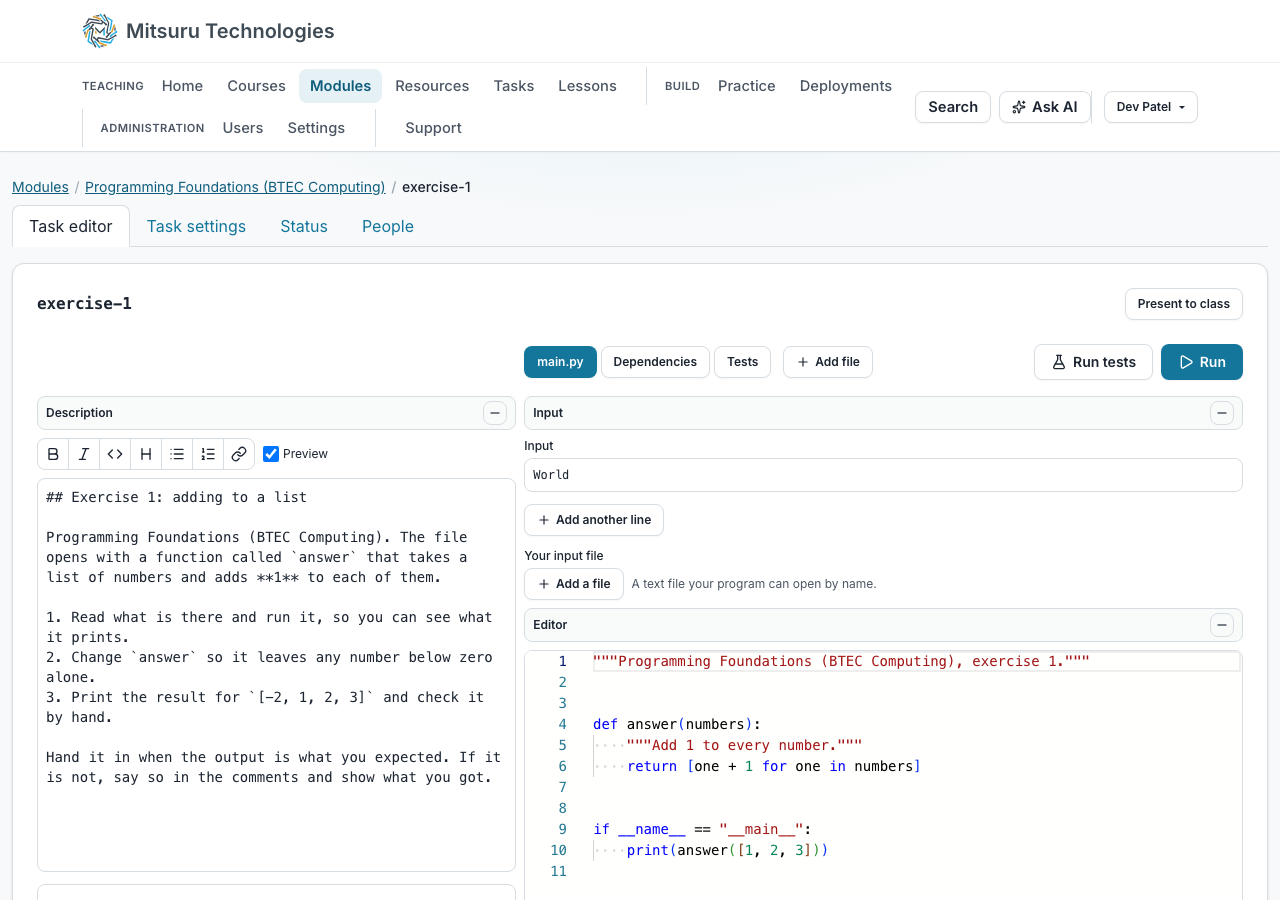
Press New task on the module, pick the Python card, and you get an editor with the starting code on one side and the instructions on the other. The instructions take headings, lists and code, so an example can look like an example.
Whatever you leave in the file is what each student starts from: a stub with a docstring, a half-finished function, or an empty file.
- Add the task. On the module’s Tasks tab, press New task and the cards open just below it, one for every kind, grouped under Code, Diagram, Quiz and Lab, so a quiz or a lab is one press too once its group is picked; Escape or Close puts them away. A module with no tasks yet shows the cards straight away. Press the Python card and the task opens as untitled-python; name it with the pencil beside its name at the top of the editor, whenever you like. The Tasks page has the same cards, where you pick the course and the module first: useful when you know what you want to write before you have decided which module it goes in.
- Write the starting code. What every student opens the first time.
- Write the instructions. What they are being asked to do, beside the code rather than on a handout.
- Assign it. Pick the students, or the whole class. Each one gets their own copy.
Add tests that mark it for you
You can attach tests to any task that runs a program: pytest for Python, JUnit 5 for Java, go test for Go, and Node’s own test runner for JavaScript and TypeScript. A Bash test is a script that passes when it finishes without an error. A student presses Run tests and sees which passed; you see the same result on their page without asking them.
Tests can be hidden, which is the point for an assessment: the student sees that four of six passed, not the assertions they failed, so the exercise is still the exercise.
Hidden does not leave a student with nowhere to check their work. Their Tests tab is then an empty box of their own, saved with their copy, with two buttons: Run my tests runs their program against that box and records nothing, and Run hidden tests runs yours, which is what the pass or fail on their task list comes from. Their own tests can never change that result, and the task’s packages are installed for both. If you show your tests later, they replace the student’s box the next time that student opens the task.
Give them a data file if they need one
A task can carry a data file the program reads, a CSV of readings or a text file to count words in. It sits beside their code when it runs, so `open('data.csv')` does what it says.
It has to be plain text, which the platform decides by reading the file and not by trusting its name: a picture renamed data.csv is refused, and a text file with no extension is taken. A byte order mark, which Excel writes at the start of every CSV it exports, is removed so the first line reads cleanly. A student can attach a data file of their own beside yours, on their own copy: one at a time, so attaching another replaces it, and its name has to differ from yours. A data file is at most 64 KB.
Give it more than one file
A coding task does not have to be a single file. Its files are a tree beside the editor: New file and New folder make one, Upload brings text files from your computer, and Rename or move takes a whole path, so lib/helpers.py puts a file in a folder called lib and the program imports it from there. A task holds up to 50 files of up to 64 KB each, 1 MB in all, and only text: an upload is checked by reading it, so a picture renamed data.csv is refused. Each file opens in its own language, so README.md is Markdown and a .csv is plain text.
The program is the file marked Run starts here, and you can rename it or move it into a folder too. Its extension stays the language’s own, and a Java, C#, Haskell or Kotlin program keeps its name wherever it goes. Remove takes a file away at once, with Undo beside it for a few seconds. A folder exists while a file is in it, so a new folder starts with its first file. In the tree the arrow keys move between files and open and close folders, Enter opens a file, F2 renames it and Delete removes it.
Handing the task out copies every file to each student, who sees the same tree and can edit every file on their own copy. They can add files of their own only if the task allows more than one file, and the files you gave them keep their names. Practice files and the playgrounds have the same tree. There is still exactly one Tests file and one package list, which is a file at the top of the tree marked Packages, described under Every language a task can be set in. A web page and a SQL task cannot be given extra files, because their panes are what they are made of. For an exercise that must stay one file, untick More than one file on the task’s settings tab; the files it already has stay, and can still be renamed and moved.
Projects with folders, and the real package files they use, have pages of their own in this manual, and so does loading a whole task from a Git repository.
A notebook, for data science
Choose Notebook when you start a task and you get a Jupyter notebook: cells of text and cells of Python, in a file that opens in Jupyter, VS Code or Colab. You add, move and remove cells, and edit a text cell in Markdown.
Run runs every code cell from the top, in order, in a clean process, and shows each cell's output under it: printed text, the value of its last line, a table from pandas and a figure from matplotlib. The cells share their variables as they would in Jupyter, but nothing is kept between presses, so what a student sees is what the notebook really does. If a cell fails, the run stops there, names the cell and the line, and says the cells after it were not run.
What is saved is the cells and never their outputs, so a notebook cannot show a result its code no longer makes. A new notebook declares pandas, numpy and matplotlib in requirements.txt, at the top of its file tree; take out what the task does not need, because each package makes the first run slower. A task that brings packages gets at least 30 seconds to run unless you set a limit yourself.
Hidden tests work as they do for a program: the code cells are joined into one Python file and your tests call the notebook's own functions by name. Hand-in, marking, groups, time limits and the rest are the same as for any program.
You can also run one cell at a time. Each code cell has its own Run, and Shift+Enter runs the cell and moves to the next. A live kernel keeps the variables between cells, so you can load data in one cell and use it in the next without loading it again; Run all runs every code cell in order, and Restart kernel forgets everything and starts clean. The page's own Run is different: it always starts from nothing and runs the whole notebook, which is the check that it reproduces from the top. A kernel stops after 15 minutes unused, or if one cell runs for more than a minute or uses too much memory, and the cell then says so and the next one starts a clean kernel. `input()` in a cell fails in that cell, and other lines starting with `%` or `!` are left out and said so. `%pip install name==1.2.3` installs one exact release of a package from the approved list; a package cannot be added to a running kernel, so it restarts the kernel, and the variables from earlier cells are gone until you run them again. A package every student needs belongs in requirements.txt instead. Interrupt stops a cell that is running and keeps the kernel and its variables, and a pandas table is drawn as a table.
To bring in a notebook you already have, press Import .ipynb and pick the file: its cells replace the ones on the page (History restores the earlier version), its saved outputs are left behind, and a notebook for another language, or one over 200 cells or 60 KB without its outputs, is refused with the reason. Export .ipynb downloads the notebook for Jupyter, VS Code or Colab, with whatever the cells are showing at that moment.
Set it for groups
A task can be set for groups instead of individuals. Each group gets one copy that anybody in it can edit and anybody can hand in, and the mark is the group’s. You form the groups on the task’s People tab, under Groups: automatically, from everyone in the module or from whoever is online right now, or by hand, moving each student under their group’s heading. It saves as you change it.
A group task is held only through a group, so handing one to somebody who is in no group is refused and the message names them. A task already handed out to people one by one cannot become group work until you take them off it, and the box says so. A quiz cannot be group work.
Only one person types in a file at a time: it shows as theirs, read-only and with their name, to the rest of the group, while the task’s other files stay editable, and a closed laptop frees the file about a minute later. Nothing is kept per student for a group task, so there is no separate copy, mark or record of who opened it, and an extension given to one member is the whole group’s.
Put a time limit on it if you want one
Any task can have a time limit: tick Give them a time limit on the task’s settings tab and set the minutes, up to four hours. The clock starts the first time each student opens the task and is kept by the platform, so a reload or cleared cookies does not restart it, and you opening their work to mark it starts none.
You choose what running out means, and the two choices are a note on the record that they went over, or the work actually stopping. Left unticked, going over is shown to the student and to you and nothing is refused; tick Stop them working once the time is up and saves and hand-ins stop at that point, though a quiz is always taken and marked however late it arrives. Nothing loses typing either way, because the editor saves a second after the last keystroke.
Sending work back gives the student a fresh clock. Every list of tasks, the student’s own and your module’s, shows a Timed badge with the minutes before anybody opens the task, because opening it is what starts the clock.
How long a run may take
This is a different thing from the time limit: it is how long one press of Run, or one run of the tests, may last before the program is stopped. Left alone it is 10 seconds for Python, Bash, Node and SQL, and 20 for Java, Go and TypeScript on Node, which have to compile first. A Go, Java or TypeScript task that declares packages gets 45, so a first run has time to fetch and build them.
To change it, set How long it may run on the task’s settings tab, in seconds, up to 60; 0 keeps the default above. A shorter limit than the default is allowed, so “make this finish in two seconds” is a fair exercise, and a figure over 60 is refused rather than quietly lowered. A student cannot ask for a second more than the task allows.
A run that is stopped for time says so and keeps whatever it had printed. Standard input is a box under the code, up to 16 KB, and a program that prints far too much has its output cut off, with a note saying so.
Where everything about a task lives
A task has four tabs. Task editor is where you write it. Task settings holds what a student may see and change, how long it may run, Ask AI, the time limit, the due date and the marks. Status shows who holds it and how it is going, and People shows who it is for, its owners and, for group work, the groups.
Nothing here has a Save button
Every setting saves itself a moment after you change it, and says "Saved" beside the field it belongs to. That is the whole platform and not just this page: a task’s settings, a module’s, your college’s details and rate, the quiz builders and a host’s availability diary.
A value the platform will not accept is refused beside the box while you type, and nothing is sent until it is something that can be stored. A field with a limit tells you how much room is left as you approach it, rather than silently refusing the next character.
The one place a button is still pressed is where pressing it reaches somebody else. Saving a job invites the customers newly ticked on it, and that cannot be taken back, so it is a decision rather than a pause in the typing.
Questions people ask
- Can students see the tests?
- Only if you let them, with Tests visible to students on the task’s settings tab. Hidden tests report a count and nothing else, which is what you want for an assessment, and the student can still write tests of their own in their Tests tab; visible tests are better for practice, because reading a failing test is a skill.
- Do students need Python installed?
- No. The code runs on our machines, in a fresh container each time.
- Can I reuse an exercise with next year’s class?
- Yes. A task belongs to whoever wrote it rather than to the module, so you can hand the same one out again, or offer it to another teacher.
- How long can a program run?
- Ten seconds by default, twenty for Java, Go and TypeScript on Node, and up to a minute if you raise it on the task.