Marking work and giving feedback
Everything about one student’s work is on one page: their code, when they saved it, what their tests did, what they handed in, and the conversation about it. You do not have to ask them to send you anything.
Start from what is waiting
Your Home page opens on what needs you: how many students have handed a task in and not been marked, and how many are overdue, for every module you run. Most urgent first, and each one is a link into that task.
Overdue is the only place anybody is told. A due date shows Overdue and, unless you ticked “Stop taking work after that date”, locks nothing, so a student can still hand in and you can still mark it.
Nothing waiting says so in a line. It is not an empty page you have to work out the meaning of.
Mark a class one after another
The page you mark from says where this student sits in the class, for example “3 of 12”, how many are still to mark, and has a link to the student either side of them, so marking thirty is not sixty trips back to a table.
You can walk the whole class, or only the work that has been handed in and not marked yet, which is the pile you sit down to. Work nobody has handed in is not in that pile: a due date shows Overdue and locks nothing, so a copy still being written is not something to wait on. Marking the one you are on drops it from the pile without losing your place, and the order is the register’s, by name, the same as the table you came from.
See where a class is without asking
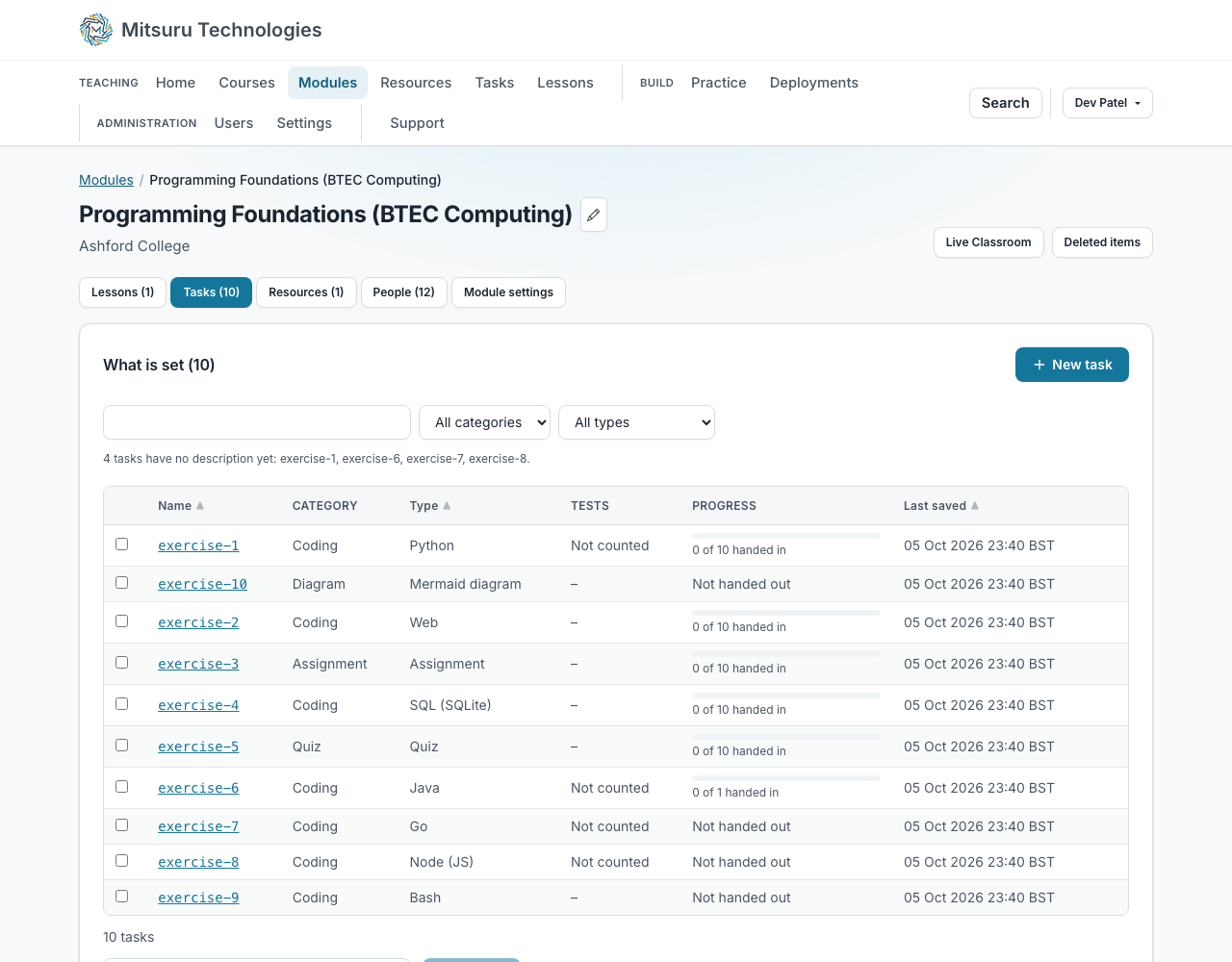
The module page lists every task against every student: what they have saved, how many tests pass, what has been handed in, and what has been marked. That is the view for "who is stuck", and it needs no lesson time to collect.
Mark it, and unmark it if you were early
A student’s list of tasks shows each one’s mark, or whether it has feedback where it is not graded. Click a task to open their work, and the mark and feedback box is there beside it: next to the code for a program, and at the top of the page for a written assignment or a quiz.
Marking closes a hand-in. If you marked before they were finished, sending it back reopens it and takes the mark off, with an optional note saying why. The note reaches them three ways, because a notice they dismiss is a note they cannot go back to. Your feedback stays where it was, so a student redoing the work can still read what they were told about it.
Once it is marked, any member of staff on the module can still change the mark and the feedback, not only whoever gave them. Saving again rewrites both, and the record says who did.
Any kind of task can be graded, a program included. A program is closed by the student’s own Hand in rather than by your mark: from that moment their editor is read-only and nothing more is saved, though Run and the tests still work. Marking on its own does not open it again. Send back does, from the marking box beside the code, which offers it once the copy is handed in, graded or not. One member of a group hands in for the whole group.
To see how a copy came to be what it is, open the task’s history on the page you mark from: every saved version is there, and a slider moves through them, oldest to newest, showing that moment’s code read-only. A task of several files has a picker for which file. You see the history but have no Restore button, which is the student’s own. A hand-in that was replaced by one with the same name keeps what it replaced: a History button beside each answer lists every earlier file, each with its own Open and Download. Opening any of them is written to the access log.
Both the marking and the reopening are on the record. Nothing about that record can be tidied away, which is what makes it worth having in a dispute.
Every mark on the module in one table, and as a spreadsheet
The module’s Marks tab lists every student against every task: the mark as you gave it, a quiz’s best go, or whether the work was handed in, with Late and any extension beside it. Click a name to open that student’s work, which is where a mark is changed.
Two downloads sit above it, both CSV files a spreadsheet opens: one row per student per task with the feedback included, or one row per student with a column per task, the shape of a mark book. A task’s own Status tab downloads that task alone. Nothing is totalled or ranked: that is for your college’s own system. A student’s name or your feedback that begins with a character a spreadsheet would run as a formula (an equals sign, plus, minus or an at sign) is written with a quote mark in front, so opening the file runs nothing, and the file is UTF-8 so names in any alphabet read correctly in Excel.
You can also download one student’s tasks, or a module’s own files, as a zip.
Only the module’s owners and teachers and the college’s admin can see it. Each download is recorded in the access log of every student in it, which they can read.
A leaderboard, if you want one
Every module has a leaderboard, and whether its students see it is yours to decide: tick Show the leaderboard on the Module settings tab and they reach it from their own module page. Whoever runs the module sees it either way. Turned off, students are told the module does not have one.
It is anonymous unless you say otherwise. A student sees their own row named and everybody else as “A student”; ticking Show student names on the leaderboard shows the class each other’s names. Only the module’s owners change either setting.
A task counts once every test in it passes. A graded task can also be put on the board, from the Marks part of its Task settings tab: it then adds its percentage multiplied by its weight, so what it is marked out of is only the scale. Most points come first, then the most tasks finished, then whoever got there first. The board shows a total, never which task gave whom what, so nobody can read a classmate’s marks off it.
Talk about it on the work
Each student has their own thread on each task. A comment from you emails them and shows on their page; a reply comes back to the same place. It is per student, so an answer to one is never in front of the class.
On a program you can comment on a line. Put the cursor on it, or select several lines, and choose “Comment on line 4 of main.py”, or whichever lines and file you picked, under the thread, or “Comment on these lines” from the editor’s right-click menu. The line is marked in the margin for you and for the student, and the comments on the code are listed in the order the code is in. If the student changes the code afterwards, the comment follows its line; if the line has gone, it says so.
Anything you find yourself writing often, save with “Save what is in the box”. Then Alt and its number puts it straight back into a comment.
Your Home page lists what is waiting on the modules you teach: work handed in and not marked, students who are overdue, and new comments. To have the same list emailed to you each morning, turn it on under Profile, Notifications. Nothing is sent on a morning when nothing is waiting.
Due dates say Overdue, and lock nothing unless you ask
A due date is a promise about a day. Passing it shows Overdue, and work handed in after it reads Late — to you on the task’s Status tab, and to the student on their own page, in the same words. Nothing is refused: somebody late should be handing work in, not locked out of it.
If you do want it to stop, tick “Stop taking work after that date” beside the date. Then a hand-in after the end of that day is refused with a sentence saying when it was due. It is off unless you tick it, and clearing the date clears it too.
The end of that day is the end of it in London, for everybody. It is the one time on the site that is not shown in the reader’s own zone, on purpose: a promise to hand in by Friday cannot slide into Saturday for somebody reading from another country.
Even closed, it only stops handing in. Nothing anybody has written is lost and saving is never stopped, so a student past the date keeps their work and can ask you to reopen it. A quiz is never shut this way: its answers only exist in the page until they are submitted, so refusing the submission would destroy the work the deadline was about.
To give one student more time, open their page in the module (their name on the module’s People tab) and choose “Give an extension” under the task’s date. Pick a later day and, if you like, a short reason. For them, and only them, the date moves: Late and Overdue follow it, and a closed task stays open until the end of their day. They are told the new date by a notice and an email, and the reason goes in the access log they can read, so keep it general. “Remove extension” puts them back on the task’s own date.
An extension has to be later than the task’s own date, and only a task with a date can have one. Sending that student’s work back clears the mark and nothing else, so the extension stays. A group’s extension is the whole group’s.
Questions people ask
- Can students see that I looked at their work?
- Yes, and deliberately: going through somebody’s work is recorded and they see the same entries you do. There is no staff-only version of that log.
- Can I give one student more time or another attempt?
- Yes, per student, without changing anything for the rest of the class.
- What happens to marks if I edit the task afterwards?
- Nothing. A mark is stored as it was given.