Quizzes that mark themselves
A quiz is marked the moment a student submits it, and the mark is kept. You build it in the browser, question by question, with no file to import and no answer sheet to keep somewhere else.
Four kinds of quiz
When you make the task you pick which kind it is: Questions, the ordinary quiz below; Drag and drop matching, where a class drags terms onto the descriptions they belong to; Click and match, the same pairs shown as two columns for them to click together; or Crossword, where you write the clues and the answers and the grid is worked out for you. All four are marked the moment they are handed in, all four keep every attempt, and all four take the same settings for how many goes and how long, which are on the task’s settings tab rather than in the builder.
Click and match puts no limit on how long either side is, so a whole definition out of a syllabus goes in as it stands. The dragging one does cap them, at 80 characters for a term and 600 for a description, because a term there sits in a chip that has to be picked up and moved, and a paragraph is not something anybody can drag on a phone. Either kind holds up to 24 pairs.
The two matching kinds are the same activity underneath, so you write it once either way: a term and the thing it belongs to, a pair per row. Pick the dragging one for a few long descriptions, and the match-up for a list of key terms being revised, which is what the free T Level game on our Resources pages is.
A matching activity is built as pairs: the term to drag, and the description it belongs on. Each pair is worth a mark of its own, so seven pairs is a mark out of seven and a student can see which one they had wrong. The terms arrive shuffled, and they can be dragged, tapped or reached with the keyboard, which is what makes it work on a tablet. A term leaves the list once it is placed, so what is left is what is still to do, and dropping it anywhere on a description counts.
When they press the button, the go is marked and comes back on the same board: green on the pairs they got and red on the ones they did not, with the right term named on each. That needs Show which questions were right, on the task’s settings tab under How it is sat, which it is unless you turn it off.
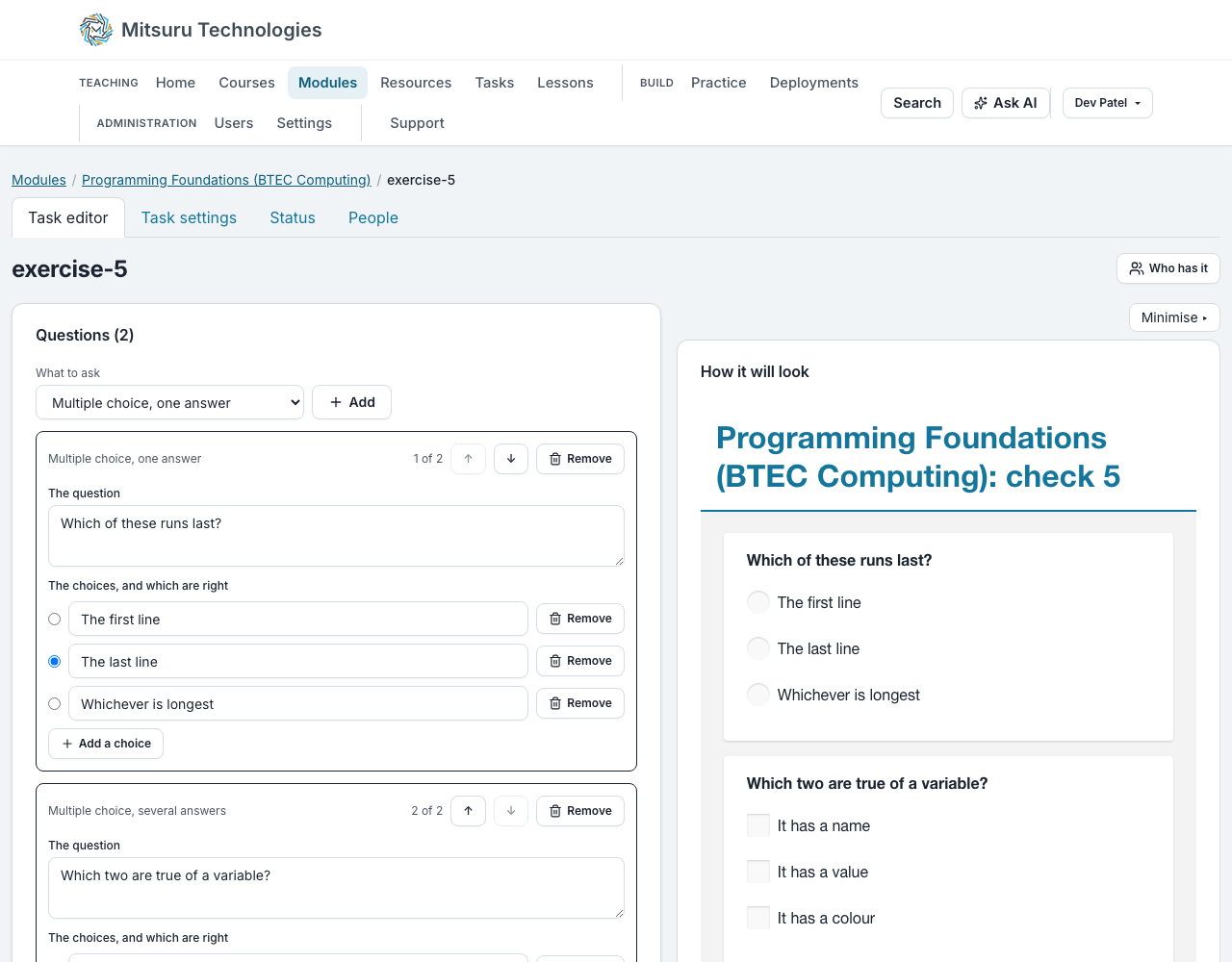
The preview beside the builder can be answered too. Press Complete and it is marked the same way a class is marked: each question is boxed green or red, your score is shown with a table of what you put against the right answer, and Try again clears it for another go. Nothing in the preview is saved, and it is marked against the quiz as it is on your screen, saved or not.
On a task opened from its link the settings are not yours to set: anybody can have a go without signing in, there is no limit on the goes, and the score and the right answers are always shown. A task anybody can open is revision, and somebody told four out of seven and not which three has nobody to ask. A name or an account is what keeps a score; without either the go is marked and forgotten.
What the button ending a go says follows the Graded tick on the task’s settings: Submit where a mark is going on the record, Check Answers where none is, so a revision activity does not ask a class to submit something nobody is marking. Reset beside it empties the board without spending a go.
Edit the JSON opens the file itself, the same as the ordinary quiz builder, and Download the JSON beside it gives you the file to keep or send on. Pasting a downloaded file back into Edit the JSON brings the activity back as it was.
There is no Save button on a matching activity: it saves itself a moment after you stop typing, the same as the settings beside it. Press Preview to see it exactly as the class will, and try it: the buttons work there, so you can place the terms and press Check Answers to see the board marked the way theirs will be. Nothing in the preview is saved, and it spends no go.
A matching activity can be given a link like any other task, and anybody with the link can have a go without signing in. Keeping the score needs a name or an account, because a marked go has to be kept against somebody.
It is a good fit for vocabulary, definitions and anything where the words and their meanings are the whole of what is being learnt. For anything that needs a typed answer, a choice or an explanation, use Questions.
A crossword
You write a clue and the word that answers it, a row each, and where the words cross is worked out for you. Up to sixteen clues: every answer has to cross another, so the grid grows quickly, and a crossword is a desktop thing. A clue can be up to 300 characters and an answer up to 24 letters and numbers.
An answer is letters and numbers. A grid has no cell for a space or a slash, so Primary key is ten cells and TCP/IP is five; the builder shows what each answer becomes as you type it. A student typing it in any case, with or without the space, is marked right.
Each clue is worth a mark, right or wrong, so twelve clues is a mark out of twelve and a student can see which words they had wrong. A clue nobody answered counts as wrong rather than as not counting.
If an answer shares no letter with any of the others it has nowhere to go, and the builder tells you which clue it is so you can change the word. Nothing is refused: the crossword saves and the rest of the grid is fine, but that clue is left off the puzzle the class sees.
Press Preview to see the grid as the class will, and try it: typing, the arrow keys and the buttons all work there. The preview is the grid as it was last saved, which is a second behind the clues above it, because the layout is worked out when the crossword saves.
Marked, the clues they got wrong turn red with the right answer written beside them. Where two words cross, red wins: a cell in a word that was wrong is wrong however right the other word through it was.
Edit the JSON and Download the JSON work the same way as they do for the other kinds. The file holds the clues and the answers; the grid is not in it, because it is worked out from the answers every time they change.
Build it question by question
Multiple choice with one answer or several, a typed word or number, true or false, a dropdown, a ranking to put in order, a matching exercise, and a few more. You pick the format per question and fill in the boxes.
The answer key is stored with the quiz and stripped out of everything a student’s browser is ever sent. There is no version of the page that contains the answers, so there is nothing to find in it.
A quiz can hold up to 200 questions, and it is saved like any task file, which is held to 64 KB. A new quiz starts empty, with no questions on it.
Decide how it is sat
How many attempts, whether the mark is shown afterwards, and how long they have. Those are set per module, so the same quiz can be a revision exercise with several attempts for one class and a single twenty-minute assessment for another.
A quiz you have not changed anything on allows one go, and tells the student their score, which questions were wrong and what the right answers were. The most goes you can allow is ten, and the time limit is set in minutes, up to four hours, with 0 meaning no limit. Only a task opened from its link has no limit on goes, and that is not a setting anybody chooses.
You do not choose the colours a quiz is drawn in, and that is deliberate: everybody reads it in the colours they chose for themselves, so a class of thirty may be looking at thirty different pages and each of them at the one they can read. Cream paper, the tints reading overlays come in, calm, dim and high contrast are all there, on the Colours and text page, and they apply to the whole site rather than to one quiz.
A student who has not signed in has the same choice, from Guest at the top of the page, so a class working from a link you shared is not left out.
A quiz is never cut off mid-answer. Running out of time is recorded and the attempt is still marked, because the answers only exist in the page until they are submitted and refusing one would destroy the work the limit was measuring.
A match-up’s marking is shown as a table, a row for each pair: the item, what they put and, where that was wrong, what the answer was. Said as a sentence, five pairs ran to two paragraphs of arrows and nobody could find the wrong one.
A match-up is worth a mark for each pair it asks for, so a student who pairs four of five correctly scores four rather than nothing. Every other kind of question is worth one mark, so a quiz with a match-up on it is out of more than the number of questions on it. Attempts already taken keep the score they were given.
Where you let a quiz show its answers, pressing Complete brings it back with the student’s own answers in it, read-only, and a box round every question: green where it was right, red where it was wrong, amber where a match-up got some of its pairs, and none round anything you mark by hand. The colour is not the only thing that says so, there is a key above the quiz and a line per question below it. Have another go clears it and gives them a fresh one if they have goes left. Where a quiz does not show its answers they get the score alone, as before.
See which questions the class found hard
A quiz’s Status tab has a table beside the register with a row for each question: how many goes answered it, how many of those got it right, and what share that is. The share is of the goes that answered that question, never of every go, so a question somebody skipped is not counted as wrong and the last question of a quiz does not look like the hardest. A question nobody answered is still a row, with no percentage, because “nobody attempted question 6” is the thing you came to find out.
A question that is marked by hand says so instead of showing nought. The table is not drawn at all where the only goes on a task came from somebody who opened its public address or a share link rather than from the class.
These figures are worked out by marking the goes again against the quiz as it is now, and the page says so. A mark already given is never recalculated, so if you corrected an answer key since, the table will not add up to the scores in the register above it.
Marks are kept as they were
A mark is stored on the attempt. Editing the question afterwards does not move a mark somebody already has, which is what makes it a mark rather than a calculation.
If somebody needs another go, you can send the quiz back to them. That adds an attempt rather than deleting the one they had.
Where a student has had several goes, the best one counts and not the last: the go with the most answers right, and the later of two that tie. Every go is still kept, and the Marks tab and its CSV show the best.
Questions people ask
- Can a student see the answers in the page source?
- No. The answer key is removed on the way out, on every route that can send a quiz to a student, and there is a test that walks every one of those routes and fails if any of them names an answer.
- What happens if a student closes the tab mid-quiz?
- The attempt is still theirs and the clock keeps running. Signing back in does not give them a fresh one.
- Can I use the same quiz with two classes on different rules?
- Yes. Attempts, feedback and the time limit belong to the module that set it, not to the quiz, so one quiz can be revision for one group and an assessment for another.