Colours and text for dyslexic and neurodivergent students
Bright white pages and black text are hard going for many dyslexic and neurodivergent readers. Anybody can choose the colours they read the site in, and the choice follows them onto every page and into every quiz.
Choose it once, on your profile
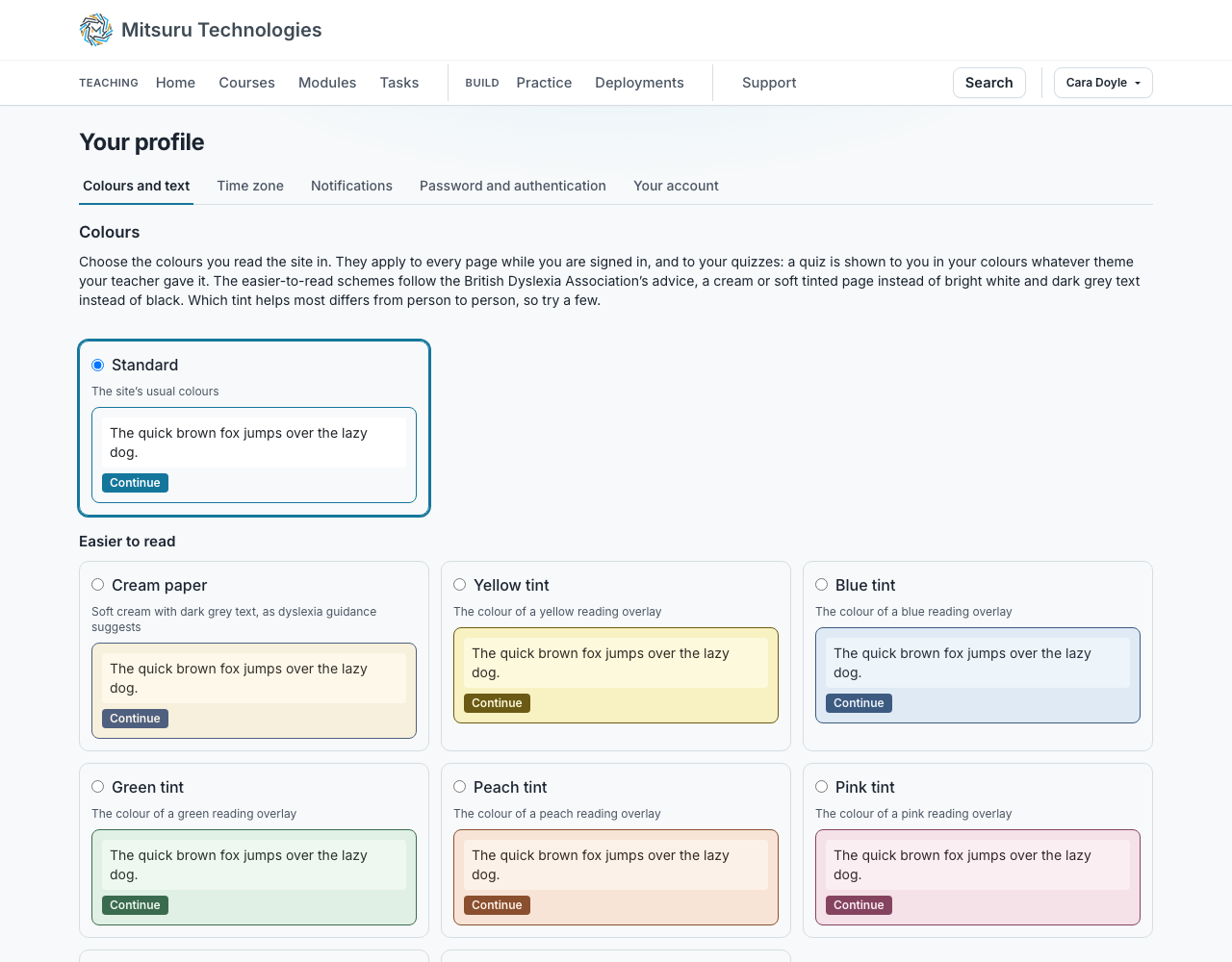
The Colours tab on the Profile page shows each scheme drawn in its own colours, so you can see which you can read before you pick it. There is cream paper, five soft tints in the colours reading overlays come in, a calm scheme with nothing bright in it, a dim dark one, and high contrast in light and dark.
They follow the British Dyslexia Association’s advice: a cream or pastel page instead of bright white, and dark grey text instead of black. Which tint helps most differs from person to person, which is why there are several to try.
Larger text, more space, a clearer font
The same tab makes the text larger, up to half as large again, puts more space between letters, words and lines, and can show everything in Verdana or Arial. The widest spacing is the amount accessibility guidelines recommend. Code in the editor keeps its own spacing, so the cursor stays where you type.
No account needed
A class working from a link a teacher shared does not have to sign in to change anything. Guest, in the bar at the top, opens the same chooser with the same schemes in it, and every page is drawn that way from then on.
A choice made that way is kept in the browser until it is closed, and nothing about it is sent to us or recorded against anybody. On a shared machine in a classroom that means the next person to sit down starts fresh rather than inheriting the last one’s colours. Signing in later uses whatever your own account says instead.
Everybody is told once
The first time somebody signs in, a note at the top of the page says the colours can be changed and links straight to the tab. It says it once. Nobody is asked whether they are dyslexic to be offered one, and a student does not need to ask a teacher.
Somebody with no account is told the same thing, but only where they are working: in a lesson, an activity, a playground or a deployment. Not while they are reading the pricing or the help, where it would be a line about something they did not come for.
A quiz has no colours of its own
A teacher cannot give a quiz a colour theme: a quiz in somebody else’s colours would undo the choice a student made to be able to read. Every quiz is drawn in the colours its reader chose, on Profile or from Guest with no account. A reader who has chosen nothing sees the site’s usual colours, including on a quiz that had a theme before this changed.
Leaving the code editor with the keyboard
Inside the code editor the Tab key indents your code, which is what a code editor should do. That means Tab does not move you out of it. Press Ctrl and M together to switch Tab to moving to the next control instead, and Ctrl and M again to go back to indenting.
The editor says so on the page under the box, and a screen reader is told when it enters the editor. Nothing else on the site holds the keyboard: every other control is reached and left with Tab alone.
What our accessibility statement says
The statement is at /accessibility, in every language the site is written in, and linked from the footer. It says the site is partially compliant with version 2.2 of the Web Content Accessibility Guidelines at level AA, and lists what is not: the code editor’s Tab key, which Ctrl and M releases, and the editor itself with a screen reader, which is usable but says more than it needs to. It also says plainly that we have not yet tested with somebody who uses a screen reader every day.
Every page is checked against the axe accessibility rules on every change, and every pair of text and background colours is measured against a contrast ratio of 4.5 to 1 by a test, so a colour edited lighter fails a build rather than a student. If you need something in another format, or find a problem that is not listed, email the address on that page with the page and what happened, and we reply within five working days. A student’s college learning support team can ask us on their behalf.
Questions people ask
- Can a teacher see which scheme a student chose?
- No. It is the student’s own setting, and we record which scheme, never why.
- Can the text be made larger or easier to read?
- Yes, on the same tab. Text can be up to half as large again, spaced more widely between letters, words and lines, and shown in Verdana or Arial, the fonts dyslexia guidance suggests. Quizzes follow it too.
- How do I get out of the code editor without a mouse?
- Press Ctrl and M, then Tab. Inside the editor Tab indents your code, so it does not move you out on its own; Ctrl and M switches it to moving to the next control, and again switches it back. Our accessibility statement says the same thing.