Ask AI: for students, for marking, and for building a task
Ask AI is one helper in three places: a student asking about their own coding task, a member of staff marking a student’s work, and a member of staff building a task. It only ever talks about the task in front of it. Asked about the weather, the news or another subject, it says it cannot help with that.
Ask AI for students
Turn it on for a task on the task’s settings, and a student sees Ask AI at the top of the page, in the same place everybody else does and wherever they have scrolled to. They can ask about the task, their code, an error or an idea they need, and it helps them work it out. How many questions they have left is said in the panel, before they spend one.
A written task can have it too, on the task’s page and inside a lesson. There it is a tutor for writing rather than for code, and a stricter one: it will not write a sentence, a heading or a bullet they could hand in, and it will not tidy up words they have already written. It will explain what the brief is asking, point at the part to read again, and say if something the task asks for is missing — without supplying it.
Quizzes have no Ask AI and cannot be given one. On a quiz any help at all is help with the answer.
It never gives the answer and never changes their code: it cannot touch the editor at all. If it shows code, it is only to explain a basic idea, with an example that has nothing to do with the task. Any code in an answer that uses the task’s own names is taken out before the student sees it.
Every answer is checked by a second model before the student sees it. An answer that is not about the task, or that gives the answer away, is replaced with “I can’t answer that question”. Both calls come out of the student’s monthly credits.
Each task gives a number of questions, set beside the switch: five unless you say otherwise. It runs only on UK-hosted models, on Amazon Bedrock in the AWS London region, and the conversation is kept for 90 days.
You can read a student’s conversation on a task when you look at their work: Read their conversation sits under the marking. The student is told in the panel, before they ask anything, that their teacher can read it, and each time you read one it appears in their access log, which they can see. Anything a student asked before that notice was added stays private and is never shown. New conversation is the student’s own and deletes it for you too.
Marking with Ask AI
Open a student’s handed-in program from their page and there is a marking box beside the code, with the mark, where the task is graded, and feedback. Feedback can be given on any program, graded or not.
Press Ask AI there and ask it to review the code, suggest a mark or write feedback. Nothing it suggests goes into the marking box by itself: it is offered under the conversation and Apply is what puts it in, so you read it before it is yours. Then change anything you like, and nothing reaches the student until you press Save.
If you have already put a mark in or written feedback, it says which of the two it would replace before you decide: press Apply it anyway to take its version, or Leave it as it is and ask for something different.
It reads the student’s saved code and runs on a UK model, whatever your college chose for building tasks, because it is a student’s work. The conversation is yours, one per student’s piece of work.
Where to find it when you are building
Ask AI is in the controls of whatever you are building: the coding task editor, all three quiz builders and both diagram editors. It is in the bar at the top as well, beside your name, which is where it used to be on its own.
It knows which task it is looking at and what you have typed so far, including changes you have not saved, so there is nothing to describe to it. It only appears where there is something to talk about, so a page without it is a page with no task on it rather than a page where it is switched off.
It does not open by itself. What it can write for you is the task, its tests and its description, and nothing reaches your class until you have read it.
It will not take your work off the page
Ask a quiz builder for one more question and you get one more question: the ones already there are kept, with their own wording and their own answers. Ask for a question to be changed and only that one changes.
What it writes appears straight in the editor, where it would live: the code, the tests, the questions or the description. A bar above the editor says what it changed, with a green tick to keep it and a red cross to undo it and put back what you had. You can press either with the conversation still open.
Nothing is saved until you press the tick. Leave the page without pressing it and your task is exactly as it was. Ask for more changes first if you like: the cross still takes you back to what you had before the first of them.
Where an answer would take something off the page, the conversation says what would go, in as many words: “keeping it would take away 5 of the 6 questions already there”. Undo costs nothing, and keeping costs no further credits.
The model you pick stays at the top of the panel while the conversation scrolls, and each turn is marked as yours or the AI’s.
The limits, and who sets them
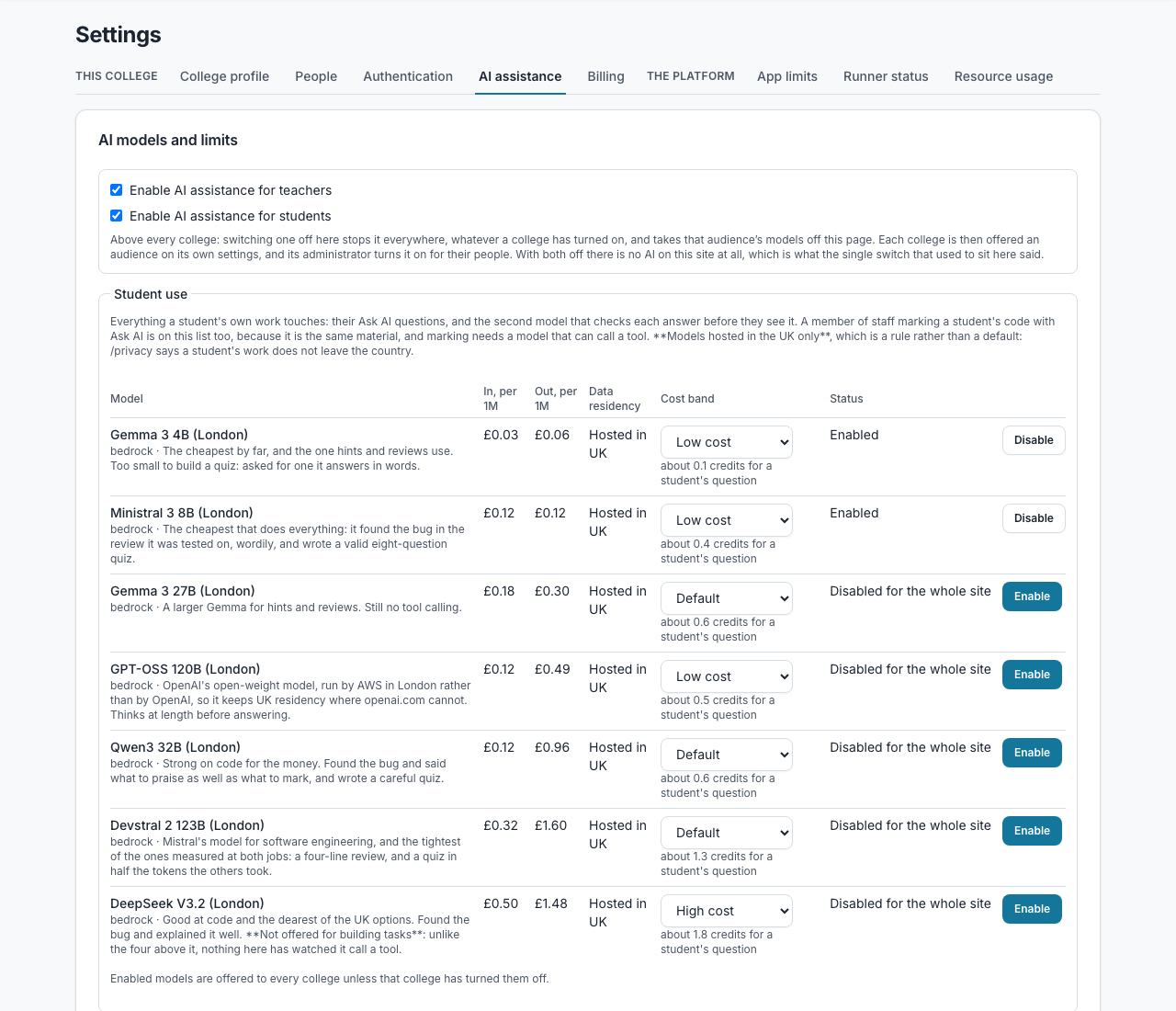
A monthly allowance of AI credits per student and per member of staff. A credit is a tenth of a penny of model spend, so it means the same thing on every model, which a token count does not. When a student’s allowance runs out their Ask AI stops until the month turns.
How many questions one task gives is set on the task itself, beside the switch that turns Ask AI on: five unless you say otherwise, and up to twenty. Five is generous on a first exercise and far too many on coursework, and you are the one who knows which this is. A question is spent before the model is asked, and is given back only if the model could not be asked at all. Nothing else gives one back, not marking and not sending work back.
AI assistance is switched on separately for staff and for students, at every level: a site administrator turns each on for the whole site and then for your college, and you turn each on for your own people under that. You are shown only the audiences your college has been given, and if it has been given neither, the tab is not there at all.
You choose one thing about the models themselves: whether your work may be processed outside the UK. UK models only, or All models. Which model answers is ours to judge and nobody at a college is asked to rank one against another; what you are responsible for is the people whose work it is, and that is the question this asks.
A site administrator can answer it for you. If they have, you see what they chose and no control, because a control you cannot use is a question you should not have been asked. If they have left it unset, it is yours, and a college that has never opened the page is on All models.
Student Ask AI and marking stay on UK-hosted models whichever you choose, because they read a student’s own work and our privacy policy says that does not leave the country.
Your staff never pick a model by name. They pick how much to spend, Low cost, Default or High cost, and the panel says what each costs for the job in hand: "about 0.2 credits for a 10-question quiz". Which model each of those is, is the cheapest one available to you in that band.
Where a model runs is settled by your answer above, not by your staff: by the time they pick a band it is your decision rather than theirs. The model that answered is still named in the panel.
Building a task by talking about it
Open any task you are writing, a quiz, a diagram, a whiteboard or a coding task, and press Ask AI. It already knows which module, which task and what kind of thing you are building, so you only have to say what it should be about.
The button is only there on a task you are writing. On any other page there is nothing for it to be about, so it is not shown.
It can work from the module’s own resources: tick up to five at a time and it reads them, text files, PDFs and images, which is what a scheme of work usually is. Anything it could not read is named rather than quietly left out, so a quiz about the wrong thing is never a mystery.
It writes onto the page rather than storing anything: read it, change anything you like, and the page saves as it always does. Ask for a change — "make the third question harder", "add a step after the check" — and it rewrites what is there.
If you have not said enough it asks rather than guessing, which is usually one question and saves you a diagram about the wrong thing.
It remembers the conversation. Close the panel, come back tomorrow or open the task on another computer, and what you said and what it answered are still there, so you can carry on rather than explain it all again. Each task has its own conversation, and it is yours alone: a colleague on the same task sees theirs, not yours. Press New conversation to start again, and anything older than 90 days is deleted either way.
It can write the Description as well. On a page with that box it is given the words as they stand, so “write the notes to match the diagram” changes the notes and leaves the diagram alone, and “add a step after the check and say so above” does both. The wording saves itself the same as anything you type there.
On a coding task it writes the starter program too, and a hidden test, more files or a package list if you ask for those. It only writes the parts you asked for: ask for a test and the program you were half way through is left exactly as you left it.
What it can write follows the language. A Bash task has no package list, a web page has its three panes and no test, and an SQL task’s test is the model answer.
Building a lesson by talking about it
Open a lesson in the lesson builder and press Ask AI. It reads the lesson as it is saved, so you can ask for a whole lesson (the topic, who it is for and how long it should take) or for a change to what is there: “rewrite the intro for beginners”, “put a quiz after the second section”, “move the summary to the top”.
It can write every kind of block you can add by hand except the ones that need a file: text, callouts, code in any language (web pages and SQL included, with their stylesheet, script and sample database), quizzes, matching, click-to-match and crosswords, Mermaid diagrams, tables, lab commands, one of this module’s own tasks, and a YouTube video or an embedded page when you give it the address. Pictures, uploaded videos, PDFs, audio and files are yours to add, and it leaves a note in the lesson where one belongs.
Nothing goes into the lesson until you keep it. Each answer comes back as a list of changes, one line each, with a tick beside every one. Keep what you want and leave the rest: a change you untick is never made. A removal starts unticked, because taking out a quiz or a program takes the students’ own answers in it too.
What you keep is written the way your own edits are, so every rule that applies to a block you type applies to one it wrote: the same limits, the same checks on a quiz, a diagram and an address, and only a task from this module. A change that cannot be made is named beside the ones that can, and does not stop them.
It is the same Ask AI as everywhere else: it needs your college to have switched it on, it spends your monthly credits, it keeps the conversation for 90 days, one per lesson and yours alone, and it only talks about the lesson in front of it.
Long work is trimmed rather than refused
A very long file is trimmed from the top before it is sent, and the AI is told so. A student with a long file gets help with the recent part of it rather than an error.
Questions people ask
- Is our students’ code used to train a model?
- No. It is sent at the moment a question is sent, is not stored by the provider and is not used for training, and anything touching a student’s work stays on a UK-hosted model, on Amazon Bedrock in the AWS London region. `/privacy` names the provider and the region.
- Can a student ask it about something else?
- No. Asked about the weather, the news or another subject, it says it can only help with this task, and an answer that strays anyway is not shown.
- Can I read a student’s Ask AI conversation?
- Yes, on a task, when you look at their work: Read their conversation sits under the marking. The student is told in the panel before they ask anything, each time you read it appears in their access log, and anything asked before that notice stays private. Your own conversations, building or marking, are yours alone. Every line is deleted 90 days after it was written.
- Can it be turned off entirely?
- Yes, per college, and there is a site-wide switch above that.
- What stops a student using it instead of thinking?
- It is told never to give the answer and cannot change their code, any code in an answer that uses the task’s own names is taken out, and a second model checks every answer before it is shown. On top of that, the per-task number of questions and the monthly allowance.
- Can it write a task for us?
- Yes: a quiz, a diagram, a coding task with its starter program and hidden test, and the description, from what you say and from the module’s own resources. It writes onto the page and nothing is kept until you press the green tick, so read what it wrote first, a generated test above all: one that is subtly wrong marks a whole class wrong.
- Who can use the drafting panel?
- Staff only, and only where the college has AI turned on for staff. Students never see it. Site administrators always have it, whatever a college has chosen, since they are the ones who set the models and pay for the calls.