Sharing worksheets, slides and datasets with a module
Not everything you hand a class is work to be done. The Resources tab on a module is for the rest of it: the slides, the reading, the spreadsheet they need for Thursday.
Upload a file
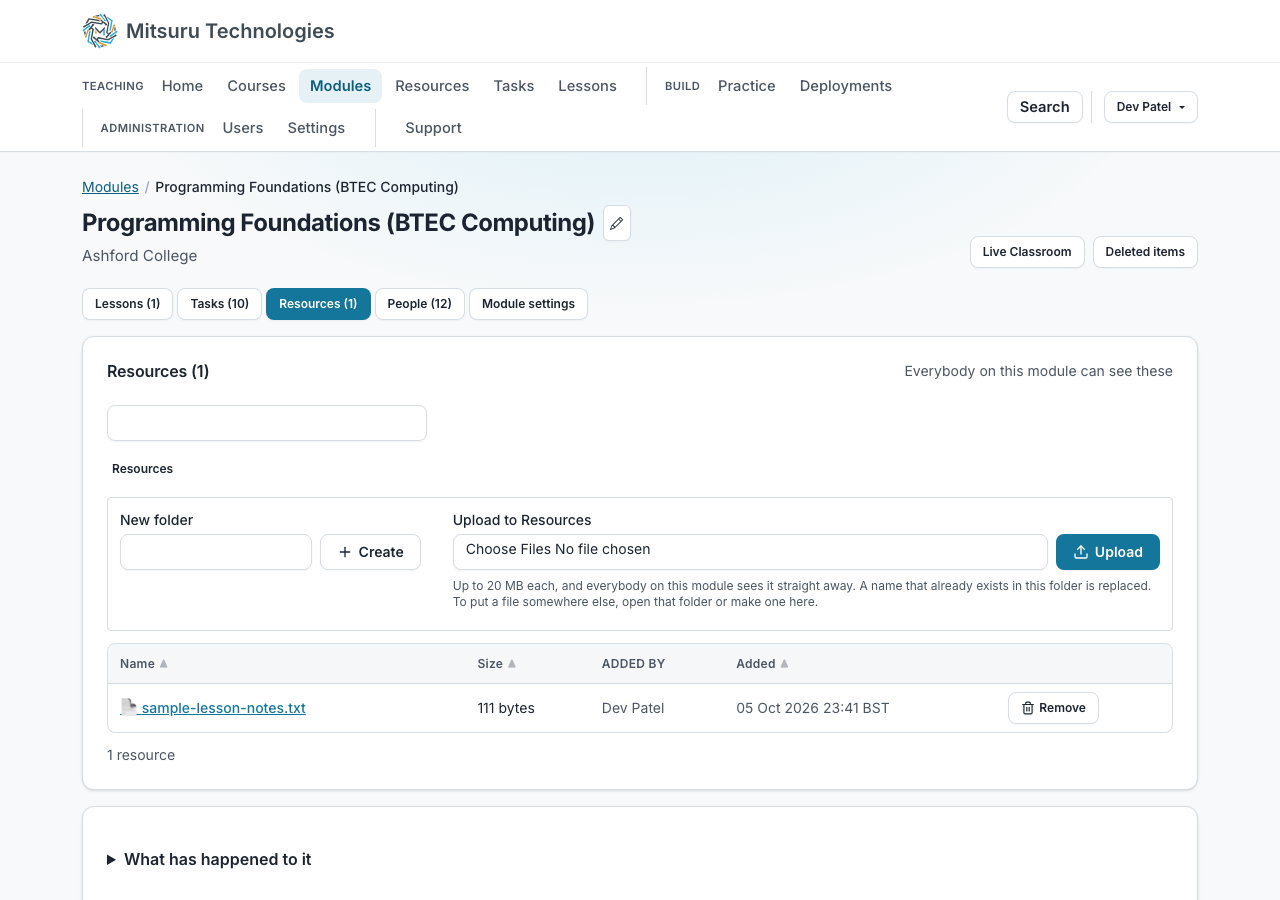
Resources is the first tab on a module’s page. Choose one file or several, give them a folder if you want one, and press Upload. Anybody teaching the module can add to it.
Any kind of file, up to 20 MB each. There is no list of allowed types: it is whatever your class needs.
Everybody on the module can see it the moment it is there. There is nothing to assign, nothing to publish and no date to set, which is what makes it a resource rather than a task.
Folders
Press New folder to make one where you are standing, and you land inside it. Type a name rather than a path: to make Week 1/Slides, make Week 1, open it, then make Slides. Four levels deep is the most.
Uploading always goes to the folder you are looking at, and the form says which one. There is no box to type a folder into: to put a file somewhere else, open that folder first or make one there.
There is also a Resources page on the bar, between Modules and Tasks, listing every file across every module you can see. It is for finding one when you cannot remember which module it is in: search by the name, the folder or the module, and the row takes you to that module’s own tab, open at the right folder. Everything is still changed there.
A folder has a Remove button like a file does, and it takes what is inside with it. You are asked first, and told how many files that is.
Each of those files goes to the bin on its own, so a folder removed by mistake can be put back a file at a time. You can only remove a folder whose files you could remove anyway: your own, or any of them if you own the module.
Your Resources tab works like any file explorer: you are in one folder at a time, folders come first with a count of what is inside, and the trail along the top takes you back up.
Searching looks everywhere rather than in the folder you are in, and each result says which folder it came from. Clear the box and you are back where you were.
Your class sees the whole thing at once instead, indented, with nothing to open: they are reading down the page rather than looking for one file.
A folder you make stays until you remove it, even while it is empty, so a term can be set up on Monday and filled on Friday. A folder that exists only because files carry its name in their path disappears when its last file leaves it. Either way renaming a folder is a matter of moving each file, rather than one change.
Taking one away
Whoever added a file can remove it, and so can anybody who owns the module. It goes to the bin like anything else, so a file taken away by mistake can be put back.
Uploading a file with the same name into the same folder replaces the one that is there.
Questions people ask
- Do students get told when I add one?
- No. It appears on their module page straight away, under the tasks they were set. Notices are for work that was set for them.
- Can anybody outside the module open the link?
- No. Only people on that module, staff and students, and we check on every download rather than relying on the link being secret.
- Why is the Tasks tab not called Files any more?
- Because there are two lists of files on that page now, and only one of them is work you set. Tasks is what that tab has always held.